Automating VM Provisioning in Proxmox with Ubuntu Cloud Images and Cloud-Init
Background
When working with virtualized environments, manually installing and configuring operating systems for every new virtual machine quickly becomes inefficient and error-prone.To solve this, I designed and implemented a reusable Ubuntu 24.04 template in Proxmox, using cloud images and cloud-init, allowing me to provision new VMs in seconds with a consistent and automated baseline.
This project focuses on infrastructure reproducibility, automation, and clean VM lifecycle management.
Design Goals
The main objectives of this project were:
- Create a single reusable Ubuntu 24.04 base image
- Enable automatic configuration at first boot
- Use SSH key-based authentication instead of passwords
- Ensure unique identity per VM when cloning
- Validate portability across multiple Proxmox nodes
- Combine Web UI workflows with CLI where necessary
High-Level Approach
The solution is based on Ubuntu cloud images, which are designed to work with cloud-init. Instead of installing Ubuntu from a traditional ISO, a prebuilt cloud image was imported and transformed into a Proxmox template.
Cloud-init is responsible for injecting configuration during the first boot, converting a generic image into a fully configured VM.
Tech Stack:
- Proxmox VE
- Ubuntu 24.04 LTS (cloud image)
- cloud-init
- QEMU / virtio
- SSH (key-based authentication)
- Proxmox Web UI + CLI
Architecture / Workflow
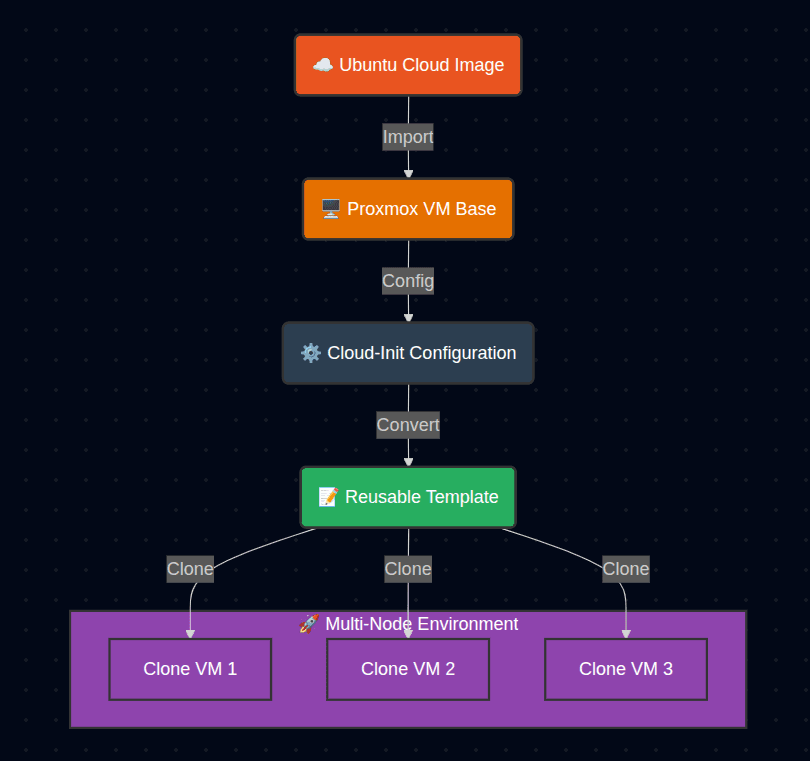
The workflow is based on a single Ubuntu cloud image converted into a reusable Proxmox template.
Cloud-init is used to inject configuration during first boot, ensuring each cloned VM receives a unique identity while sharing the same base image.
Implementation Walkthrough
1. Base VM Creation
A new virtual machine was created using the Proxmox Web UI, defining CPU, memory, networking, and OS type.The VM was intentionally created without a disk, allowing full control over how the operating system image would be attached later.
2. Disk Import via CLI
The Ubuntu 24.04 cloud image was imported using the Proxmox CLI, as this step could not be reliably completed through the Web UI.
cd /var/lib/vz/template/isowget https://cloud-images.ubuntu.com/noble/current/noble-server-cloudimg-amd64.img
qm importdisk 9000 noble-server-cloudimg-amd64.img local-lvm
This approach ensured proper disk attachment and compatibility with cloud-init.
3. Virtual Hardware Configuration
The imported disk was attached using the VirtIO SCSI controller, and the boot order was explicitly defined. The VM was configured to use SeaBIOS, which is required for compatibility with Ubuntu cloud images in this setup.
4. Cloud-Init Configuration
Cloud-init settings were configured through the Proxmox Web UI to:
- Define the default user
- Enable DHCP networking
- Inject an SSH public key for secure access
This allows each VM clone to automatically configure itself during its first boot.
5. Guest Agent Installation
The QEMU Guest Agent was installed manually inside the VM to improve integration with Proxmox.
sudo apt update
sudo apt install -y qemu-guest-agent
sudo systemctl enable --now qemu-guest-agent
This enables accurate IP reporting, clean shutdowns, and better VM visibility from the Proxmox interface.
6. Template Preparation
Before converting the VM into a template, cloud-init data and system identity were cleaned:
sudo cloud-init clean
sudo truncate -s 0 /etc/machine-id
sudo shutdown now
7. Template Conversion and Validation
The VM was converted into a reusable template and used to create multiple cloned virtual machines. Each clone successfully:
- Generated a unique hostname and system ID
- Received networking configuration automatically
- Allowed passwordless SSH access using injected keys
This step ensures that every cloned VM generates a unique identity and executes cloud-init properly on first boot.
8. Multi-Node Portability
To validate the robustness of the design, the template was migrated to another Proxmox node and used to create new VMs from there.
This confirmed that the template is fully portable and not tied to a single node.
Results
- VM provisioning time reduced from minutes to seconds
- Consistent Ubuntu 24.04 baseline across all VMs
- Secure, passwordless SSH access by default
- Clean VM identity on every clone
- Fully reusable and multi-node compatible template